

 中文
中文 
m***1@laoia.com deepin
2026-04-29 18:10 deepin The user is banned, and the content is hidden.
 deepin
 deepin
 Hello, I tried it on two computers. One has Windows 10 as a secondary boot option, and the other has Windows 11. A command like 'wsl --list --online' shows everything except Deepin25. Therefore, I went the route of downloading the WSL file ('deepin25-amd64.wsl') first and then installing it offline.
However. Installing WSL versions is generally not allowed on my company's work PC, and secondly, at home I actually always just use Deepin 25 directly. Unfortunately, it seems they are trying to make it particularly difficult for Deepin here. I will post a photo shortly showing what wsl --list --online looks like on a current Windows 11.
你好,我在两台电脑上尝试过,其中一台将 Windows 10 作为次要启动选项,另一台是 Windows 11。像 'wsl --list --online' 这样的命令显示了所有内容,唯独没有 Deepin25。因此,我采取了先下载 WSL 文件('deepin25-amd64.wsl'),然后进行离线安装的方法。
但是。我公司的办公电脑通常不允许安装 WSL 版本,其次,我在家里实际上一直直接使用 Deepin 25。遗憾的是,这里似乎要让 Deepin 变得特别困难,我马上会发一张照片,展示在当前的 Windows 11 上 wsl --list --online 的样子。
deepin Here is the Screenshot. It is indeed the same physical maschine as this here.
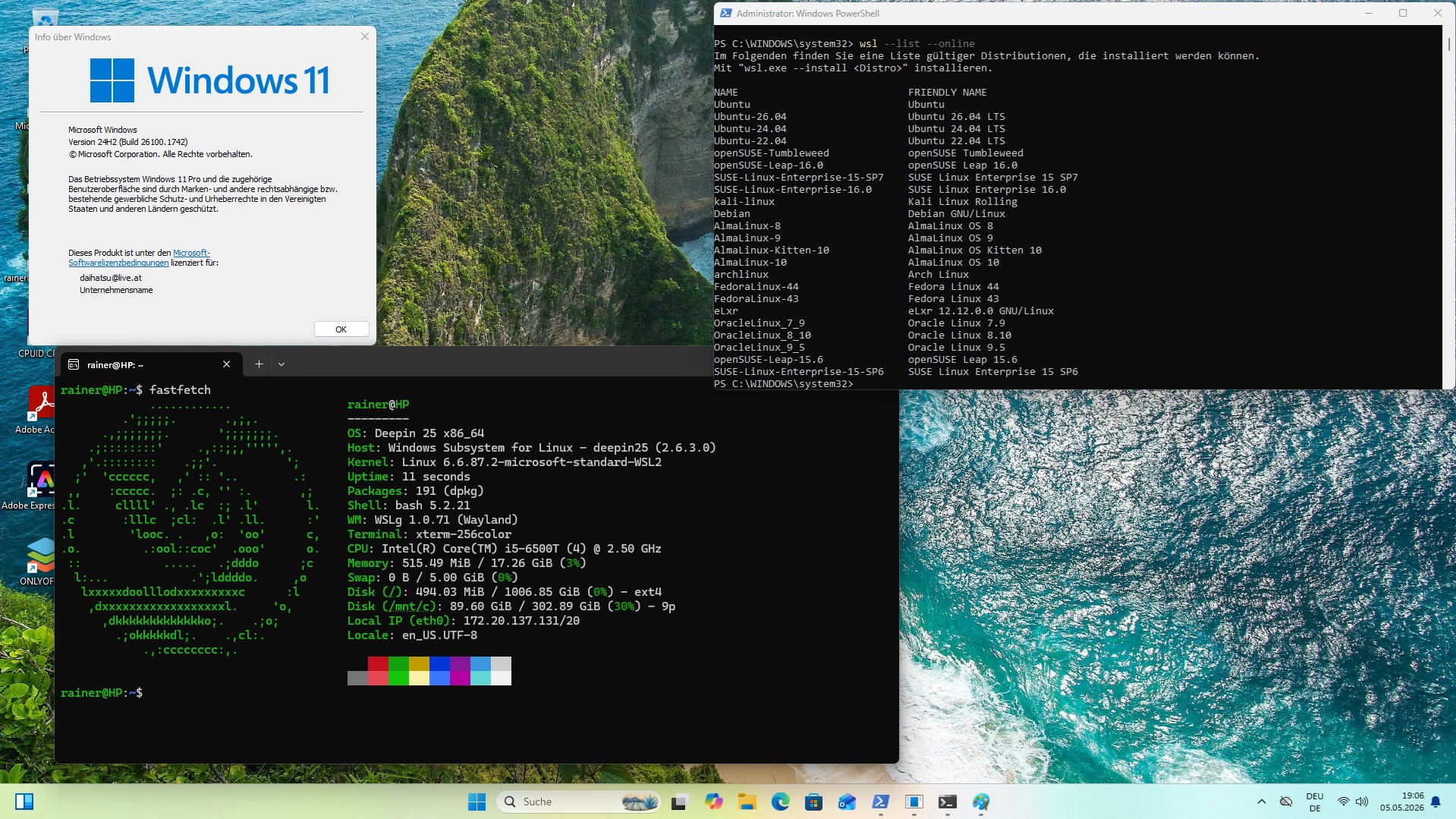
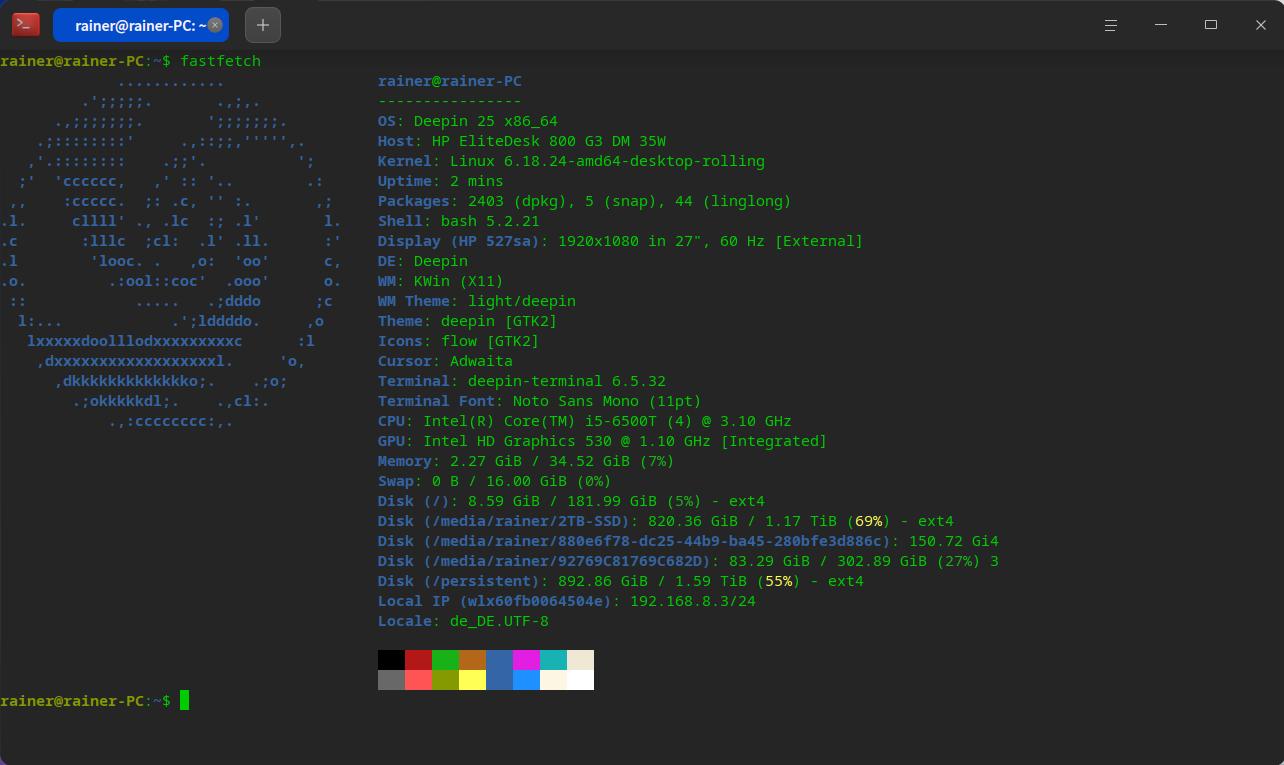

Hello, I tried it on two computers. One has Windows 10 as a secondary boot option, and the other has Windows 11. A command like 'wsl --list --online' shows everything except Deepin25. Therefore, I went the route of downloading the WSL file ('deepin25-amd64.wsl') first and then installing it offline.
However. Installing WSL versions is generally not allowed on my company's work PC, and secondly, at home I actually always just use Deepin 25 directly. Unfortunately, it seems they are trying to make it particularly difficult for Deepin here. I will post a photo shortly showing what wsl --list --online looks like on a current Windows 11.
你好,我在两台电脑上尝试过,其中一台将 Windows 10 作为次要启动选项,另一台是 Windows 11。像 'wsl --list --online' 这样的命令显示了所有内容,唯独没有 Deepin25。因此,我采取了先下载 WSL 文件('deepin25-amd64.wsl'),然后进行离线安装的方法。
但是。我公司的办公电脑通常不允许安装 WSL 版本,其次,我在家里实际上一直直接使用 Deepin 25。遗憾的是,这里似乎要让 Deepin 变得特别困难,我马上会发一张照片,展示在当前的 Windows 11 上 wsl --list --online 的样子。
Thank you for your feedback.
Regarding the deepin 25 WSL distribution: the version we released is a fully offline WSL package. It has not been submitted to Microsoft's upstream WSL repository (https://github.com/microsoft/WSL), so it does not appear in the online installation list. That is why running wsl --list --online does not show deepin25 as an option.
For more details, please refer to Microsoft's official documentation:
Add your distribution to WSL – Install for all WSL users

 deepin deepin
 deepin
 HI ALL
I have made DEEPIN desktop works well under WSL DEEPIN 25.02.00
Will get back and say how to do this via WSL =)
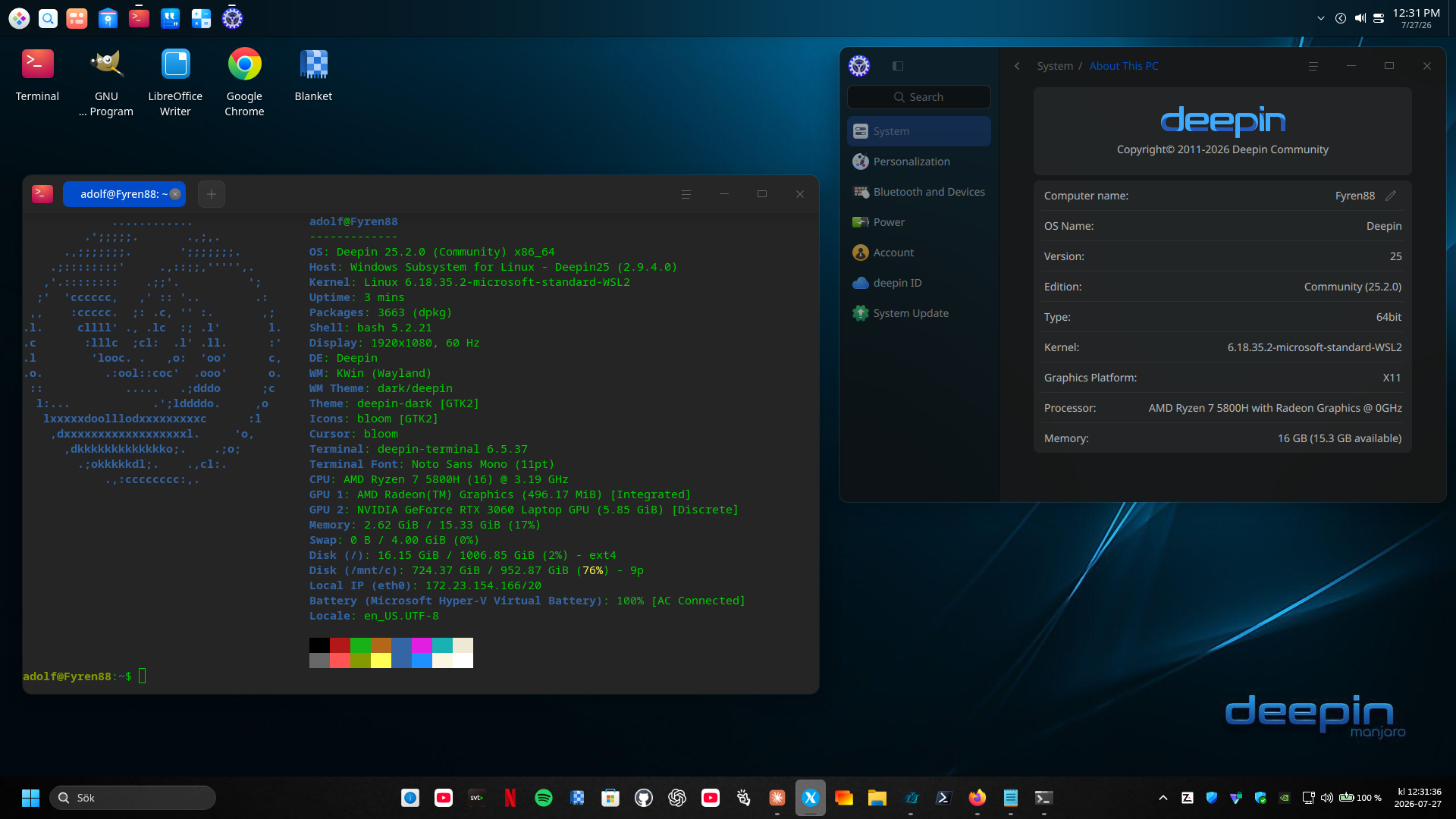
Regads,
Mattias Vinberg
deepin deepin deepin Popular Ranking
ChangePopular Events
More


 Unable to install HP Laserject Pro M15a Printer
For daily development and testing, many users want a convenient way to use Linux toolchains within a Windows environment. This is where WSL (Windows Subsystem for Linux) becomes the best choice.
What is WSL?
WSL is a feature provided by Microsoft that enables developers to run a GNU/Linux environment—including most command-line tools, utilities, and applications—directly on Windows without the overhead of a traditional virtual machine or dual-boot setup. With WSL, you get a near-native Linux experience.
A New Installation Experience
Microsoft recently updated its WSL ecosystem rules: distributing Linux distributions is no longer strictly tied to the Microsoft Store. This means developers and communities can package and distribute
.wslinstallation files directly. Users can simply double-click to deploy the Linux system, just like installing regular Windows software. The entire process supports full offline installation, significantly lowering the barrier caused by network restrictions.Today, we'll walk you through this incredibly easy method to install the latest deepin 25 WSL release on Windows. We also want to give a special shoutout to community member @空木蓮華 for providing the WSL image support for this release.
I.Prerequisites
Before getting started, please ensure your Windows system meets the following requirements:
II.Enable and Install the WSL Base Environment
You can set up everything needed to run WSL with just a few simple commands.
III.Download and Install deepin 25 WSL
With the environment ready, you can now install the dedicated deepin 25 image.
.wslinstaller that matches your computer's CPU architecture. The page offers bothamd64andarm64versions, corresponding to Windows X64 and Windows ARM architectures respectively..wslfile. The system will pop up an installation wizard; just follow the prompts to enter your deepin25 WSL username and password, and the installation will quickly complete in the background.IV.Common Commands and Management
After installation, you can launch and manage your deepin 25 subsystem via PowerShell or CMD.
Launch deepin 25
Stop/Shutdown deepin 25 (If you want to free up background resources, you can force-close a specific distribution)
enter the following commands one by one and press Enter:
☑ Uninstall deepin 25 (Note: This will delete all data within this subsystem. Please proceed with caution or back up important files beforehand)
References