
 中文
中文 
jjcui8595 deepin
2023-05-09 14:46 deepin 看看生成的文本文件
Reply Like 0 View the author
 deepin
 看看生成的文本文件

 deepin
 搞个pe盘,diskgenuis
 deepin
 搞个pe盘,diskgenuis
我有pe,但是那个是win版的 制作pe也要win系统,所以我想直接用Linux上的工具
deepin 看看生成的文本文件
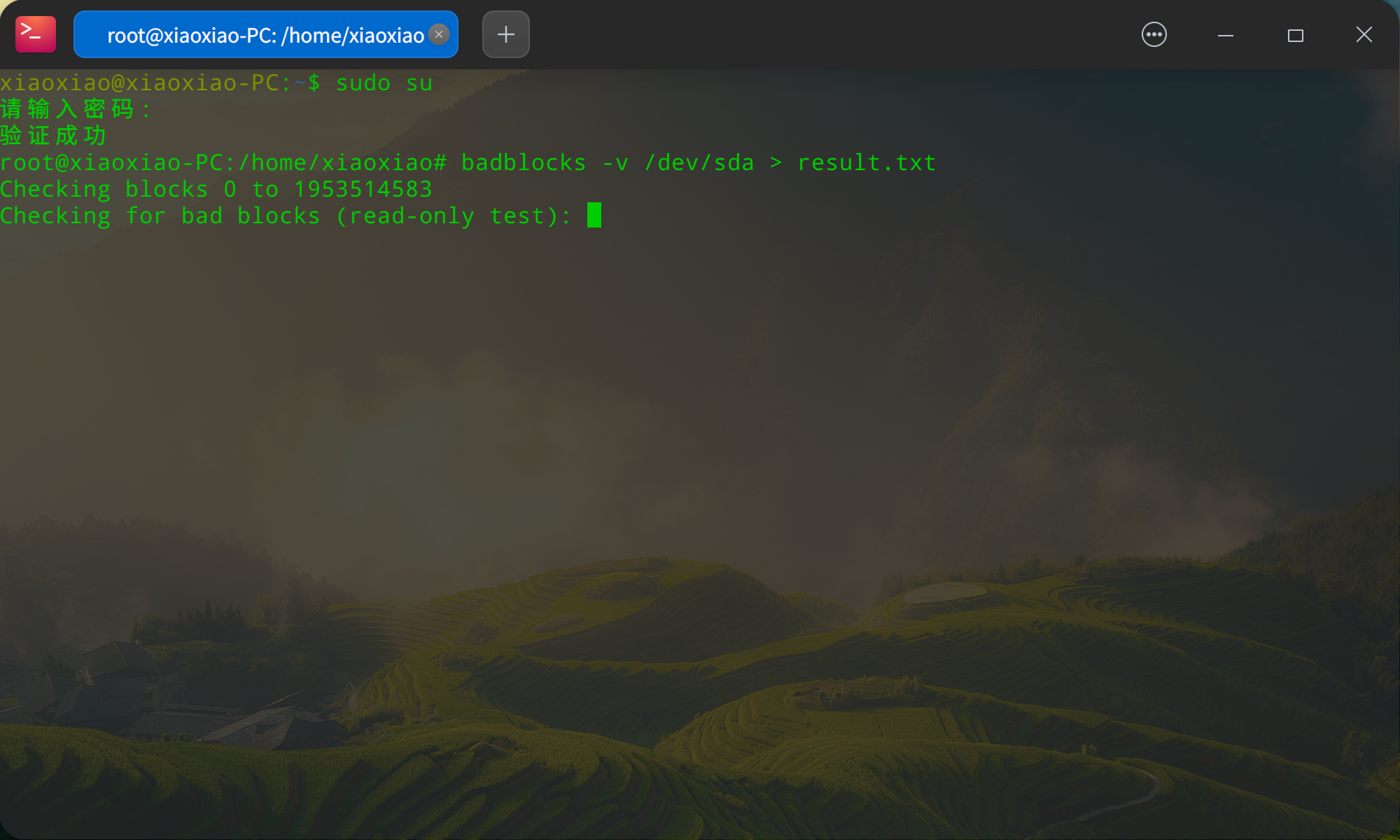
是空白的,
 deepin
 你这个是机械盘对吧?检测速度可能比较慢,时间也较长。
deepin 你这个是机械盘对吧?检测速度可能比较慢,时间也较长。
嗯 机械移动硬盘
deepin 你这个是机械盘对吧?检测速度可能比较慢,时间也较长。
主要是没有显示状态 不知道有没有检测,看到硬盘的指示灯一直在闪,应该是在检测把

 deepin
 我有pe,但是那个是win版的 制作pe也要win系统,所以我想直接用Linux上的工具
不需要win ventoy 制作的u盘 微pe ISO丢进去就行
deepin 不需要win ventoy 制作的u盘 微pe ISO丢进去就行
但是那个微PE的程序需要Windows运行
deepin 但是那个微PE的程序需要Windows运行
微pe 有iso的镜像文件,可以直接丢到ventoy做的启动盘里面直接用, 好像现在没直接提供,需要自己转

deepin 不需要win ventoy 制作的u盘 微pe ISO丢进去就行
也是,我怎么没想到 
deepin 也是,我怎么没想到
哈哈
deepin 但是那个微PE的程序需要Windows运行
wine可以
deepin wine可以
我怎么没发现还有这个?!
用Wine运行器试了一下,还真可以耶!
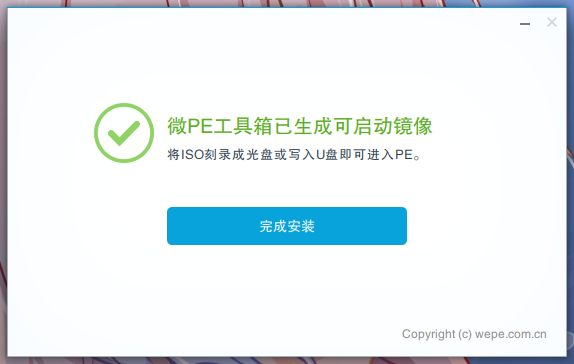

deepin 我怎么没发现还有这个?!
用Wine运行器试了一下,还真可以耶!
嗯 我刚刚弄好了
deepin 嗯 我刚刚弄好了
感觉wine运行小型软件还可以,但是运行大型的就要配置运行环境和驱动

 deepin
 修改时间:2023年05月10日11:09:34
测试环境:deepin v20.9
使用声明:本文档为整理内容,不保证完全正确,欢迎指正。
参考链接:
https://blog.csdn.net/carefree2005/article/details/120718994
http://www.360doc.com/content/23/0115/15/30796658_1063775115.shtml
sudo apt install smartmontools
sudo smartctl -i /dev/sda
sudo smartctl -H /dev/sda
sudo smartctl -a /dev/sda
...
SMART support is: Enabled //表示硬盘支持SMART
SMART overall-health self-assessment test result: PASSED //健康状态达标(注意,达标不代表没有坏道!)
sudo apt install e2fsprogs
sudo badblocks -sv /dev/sda1
sudo badblocks -svwf /dev/sda 65536 1024 -o badblocks.log
-s //显示进度
-v //显示执行详细情况
-w //以写去检测
-b //指定区块大小,默认4096
-c //每个区块检测次数,默认16次
-f //强制在挂载设备上运行读写或非破坏性的写测试
-o //输出结果到文件
-i //跳过文件里的坏道
[device] //硬盘设备,例如sda、sda1
[last-block] //指定要检测的区块总数(即结束位置)
[start-block] //指定从哪个区块开始检测(即即开始位置)
注意:不能直接以写方式检测已经挂载的硬盘,可以加-f选项。
sudo apt install hdparm
sudo hdparm -Tt /dev/sda
hdparm -h
修改时间:2023年05月10日11:09:34
测试环境:deepin v20.9
使用声明:本文档为整理内容,不保证完全正确,欢迎指正。
参考链接:
https://blog.csdn.net/carefree2005/article/details/120718994
http://www.360doc.com/content/23/0115/15/30796658_1063775115.shtml
sudo apt install smartmontools
sudo smartctl -i /dev/sda
sudo smartctl -H /dev/sda
sudo smartctl -a /dev/sda
...
SMART support is: Enabled //表示硬盘支持SMART
SMART overall-health self-assessment test result: PASSED //健康状态达标(注意,达标不代表没有坏道!)
sudo apt install e2fsprogs
sudo badblocks -sv /dev/sda1
sudo badblocks -svwf /dev/sda 65536 1024 -o badblocks.log
-s //显示进度
-v //显示执行详细情况
-w //以写去检测
-b //指定区块大小,默认4096
-c //每个区块检测次数,默认16次
-f //强制在挂载设备上运行读写或非破坏性的写测试
-o //输出结果到文件
-i //跳过文件里的坏道
[device] //硬盘设备,例如sda、sda1
[last-block] //指定要检测的区块总数(即结束位置)
[start-block] //指定从哪个区块开始检测(即即开始位置)
注意:不能直接以写方式检测已经挂载的硬盘,可以加-f选项。
sudo apt install hdparm
sudo hdparm -Tt /dev/sda
hdparm -h
好的,谢谢!
Popular Ranking
ChangePopular Events
More


 necesito ayuda
检测磁盘坏道是这样的吗?电脑挂了以一晚上一直这样没有动