

 中文

wangyingtao deepin
2017-04-29 03:43 deepin 4. Memory Usage
It's still important to see memory info although this review is less technical. For you're curious, after freshly installed at idle time deepin 15.4 consumes around 730MB of RAM. It's surprisingly low compared to its Beta Version (reviewed), lower than Ubuntu Zesty (1GB), Ubuntu Budgie (850MB). This 700MB is a cheap cost for its beauty, although deepin can't beat Kubuntu Zesty (400MB) and Xubuntu (330MB).
Total
Surprisingly, deepin 15.4 consumes only around 730MB of RAM at idle time after freshly installed.

Details
To see more precisely, the most memory consuming processes here are python2 (48MB),deepin-wm (37MB), dde-launcher (33MB), and dde-dock (25MB). If you look closely, almost all hugest processes are deepin native's, as a cost of its beauty. And you should notice that python2 at the top is a process that runs Deepin Screenshot (the program I use to take these screenshots).

5. Installer
deepin 15.4 features a new OS installer that is very simple and focused. The design reflects the 15.4 style that is translucent. This installer has similar steps to Ubiquity (the system installer of Ubuntu), but with username creation in the beginning and of course its visual amusement.

6. Sidebar
deepin has its own control panel as right sidebar, called Control Center. This sidebar covers all system settings, plus the awesome visual GRUB bootloader editor. The sidebar can be opened in 3 ways: by pushing pointer to bottom-right corner, by clicking on gear button, or by opening any component (e.g. right-click on desktop > Display Settings).

Bootloader Visual Editor
User can rearrange GRUB entries and change the background image from deepin sidebar. It's very cool to see it could avoid non-tech users' mistakes in editing GRUB manually. This feature is brilliant, I cannot find any other distro brings such feature. But again, Deepin Team made this simple and pretty, with just two slide buttons, a drag-n-drop picture to change background, and drag to rearrange entries.

System Details
If you want to see Details, OS version and hardware summary, you see it on sidebar. Scroll to the most bottom. It lies over License and Startup Menu entries. It shows generic info such as deepin version (15.4 Desktop), architecture (64Bit), processor & memory. It shows the name of deepin developer as well, Wuhan Deepin Technology.

6. Dock, Close Up
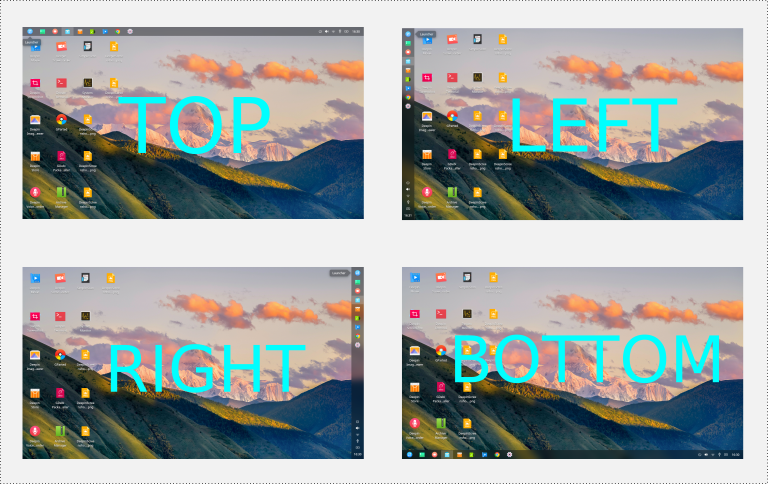
The dock has two modes, Fashion (default) and Efficient. Those are just the languages. Actually,Fashion is the MacOS-like dock, and Efficient is the Windows 7-like taskbar. Deepin Dock features multiple size selections (large-medium-small), locations (top-bottom-left-right), andsmart hide (hidden-shown-smart). I can grasp the deepin dream here to attract both Windows and MacOS users by this feature. And furthermore, KDE and Cinnamon users might be interested to deepin by this.

It's still important to see memory info although this review is less technical. For you're curious, after freshly installed at idle time deepin 15.4 consumes around 730MB of RAM. It's surprisingly low compared to its Beta Version (reviewed), lower than Ubuntu Zesty (1GB), Ubuntu Budgie (850MB). This 700MB is a cheap cost for its beauty, although deepin can't beat Kubuntu Zesty (400MB) and Xubuntu (330MB).
Total
Surprisingly, deepin 15.4 consumes only around 730MB of RAM at idle time after freshly installed.
Details
To see more precisely, the most memory consuming processes here are python2 (48MB),deepin-wm (37MB), dde-launcher (33MB), and dde-dock (25MB). If you look closely, almost all hugest processes are deepin native's, as a cost of its beauty. And you should notice that python2 at the top is a process that runs Deepin Screenshot (the program I use to take these screenshots).
5. Installer
deepin 15.4 features a new OS installer that is very simple and focused. The design reflects the 15.4 style that is translucent. This installer has similar steps to Ubiquity (the system installer of Ubuntu), but with username creation in the beginning and of course its visual amusement.
6. Sidebar
deepin has its own control panel as right sidebar, called Control Center. This sidebar covers all system settings, plus the awesome visual GRUB bootloader editor. The sidebar can be opened in 3 ways: by pushing pointer to bottom-right corner, by clicking on gear button, or by opening any component (e.g. right-click on desktop > Display Settings).
Bootloader Visual Editor
User can rearrange GRUB entries and change the background image from deepin sidebar. It's very cool to see it could avoid non-tech users' mistakes in editing GRUB manually. This feature is brilliant, I cannot find any other distro brings such feature. But again, Deepin Team made this simple and pretty, with just two slide buttons, a drag-n-drop picture to change background, and drag to rearrange entries.

System Details
If you want to see Details, OS version and hardware summary, you see it on sidebar. Scroll to the most bottom. It lies over License and Startup Menu entries. It shows generic info such as deepin version (15.4 Desktop), architecture (64Bit), processor & memory. It shows the name of deepin developer as well, Wuhan Deepin Technology.

6. Dock, Close Up
The dock has two modes, Fashion (default) and Efficient. Those are just the languages. Actually,Fashion is the MacOS-like dock, and Efficient is the Windows 7-like taskbar. Deepin Dock features multiple size selections (large-medium-small), locations (top-bottom-left-right), andsmart hide (hidden-shown-smart). I can grasp the deepin dream here to attract both Windows and MacOS users by this feature. And furthermore, KDE and Cinnamon users might be interested to deepin by this.
Reply Like 0 View the author







 pen]Official Gerrit[/url]

 Four agent skills for laptop power, sleep, and honest bug reports


deepin 15.4 has been released on April 19th 2017. This review reveals the visual aspects of this beautiful GNU/Linux operating system. deepin is a very visual desktop OS where everything is accessible via GUI, and in 15.4 release it gets incredibly more user-friendly. The desktop and all native applications are very pretty, being unique with its own concepts, with simplicity on every layout. You will not find a desktop like this, not in MacOS, not in Windows, not even in Ubuntu, but only in Wuhan's developed system: deepin. This review talks less on technical but more on visual appearance. I make this so all new users can see what's wonderful about deepin.
1. Overview
This is the user interface of deepin 15.4 with original wallpaper, bottom dock, and right sidebar. This review is going to examine its 3 main parts that are visually amusing: the desktop, thesidebar, and the dock.
Menu
The desktop menu appearance is fullscreen, not a cascading one like on KDE or Windows.
Login Screen
The login screen is also interesting. It shows simple design, with a centered login textbox, clock & date view on bottom-left corner. On lock screen (screen that locks your system after idling for certain time) you can still play audio (if Deepin Music is running behind) using control buttons on bottom-right corner. See play/pause and forward/backward buttons below.
2. Desktop Concept
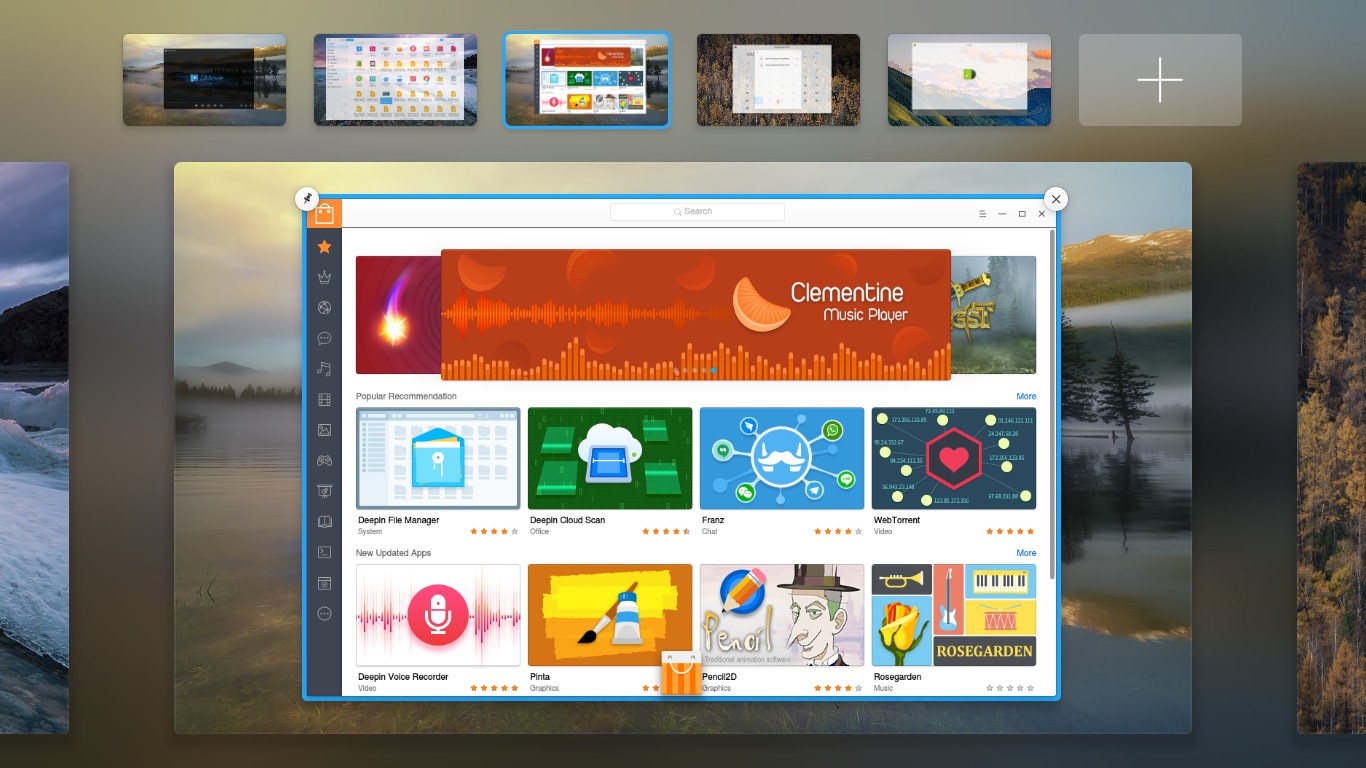
User interacts with deepin via 3 main desktop components: the menu, the sidebar, and the dock. Every application window has top-left close button, with menu button on the titlebar. All user & system settings done via sidebar (called Control Center) that can be shown by pointer-pushing, click on gear button, or right-click on desktop. Shortcut icons can be placed on desktop. Thedock position choices are 4 (top-bottom-left-right), and its visual choices are 2 (MacOS-like dock or Windows-like panel). By seeing these facts we can grasp the concept of deepin user interface that is mixing many aspects from Windows & MacOS.
3. Wallpapers
These are 24 new wallpapers for deepin 15.4. They're stored at /usr/share/wallpapers directory. As you may know, this set of wallpaper is beautiful like always, with very nice photographic quality.
The way to change wallpaper is very familiar: right-click on desktop > Set Wallpaper > select one.